




KIS List for solo designers

Solo in the studio. The whole company in your head.

You design. You send the floor plan. You remember why the client chose the other worktop. We've made room for the work around the design: lists, files, decisions and deadlines. So that when you're back from the site, you can open the project instead of rebuilding it from memory.

Project panel, notes, schedule and client panel: Expert.

KIS List features

KIS List supports every stage of the design process.

KIS List takes everything that doesn't need a human off your mind: so you can finally do your own work, from the brief to design supervision.

Stage 1 of 5

01 You listen to the client.

“The best projects start with a good brief…” - that's what we should write here, but we won't, because we all know what client briefs are like. You'll conjure a project out of it anyway - the only question is why struggle when there's a simpler way?

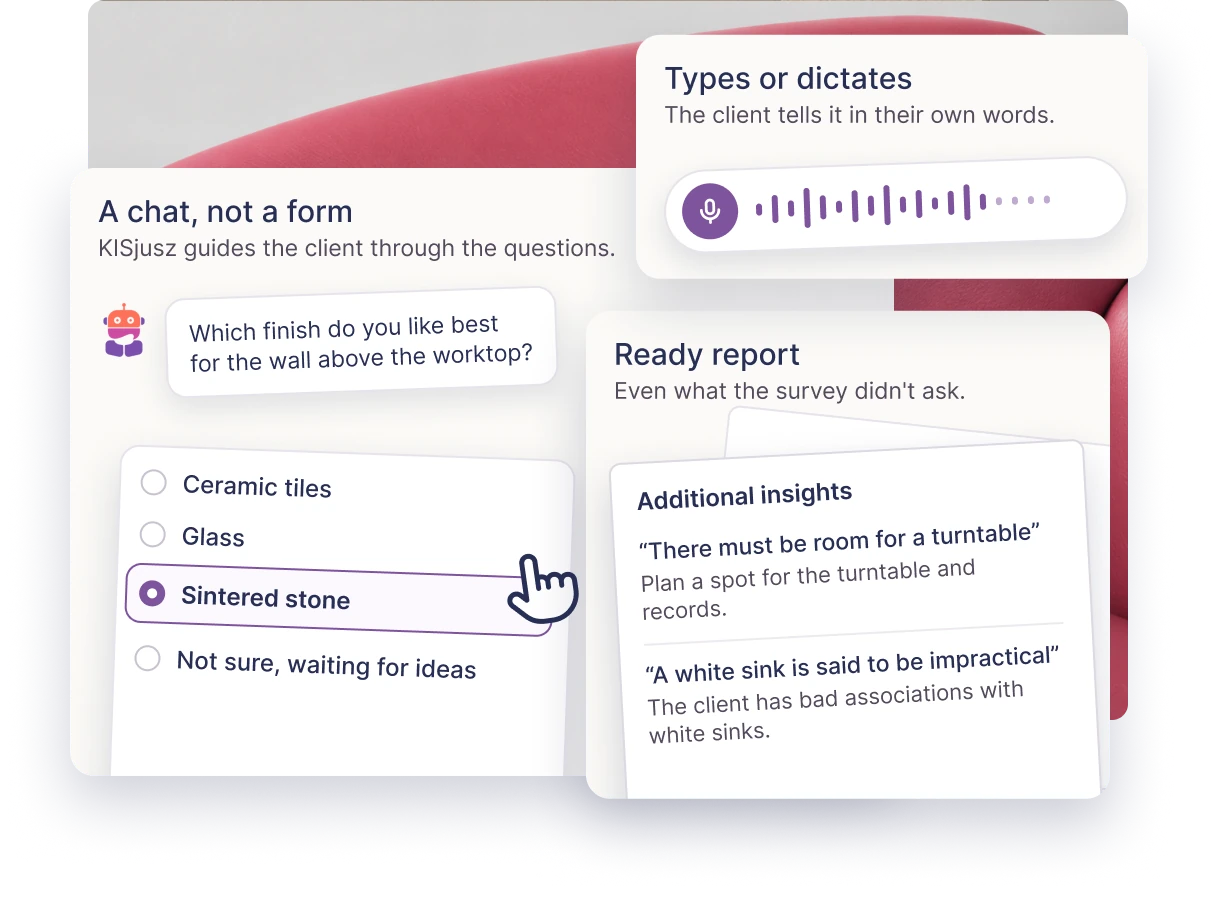
KISjusz - a smart client survey

AI add-on

The first meeting with the client, without you having to be there.

You write the questions or pick a survey template, and KISjusz walks the client through it as a conversation. It asks for details and explains unfamiliar terms - following your questions, without leaving the client alone with a form. The client can type or dictate: speaking freely makes it easier to develop a thought and share details. You get an organised report and a starting point for the next conversation.

Paid add-on, available with every plan
Notes, to-dos and attachments in the project

Expert

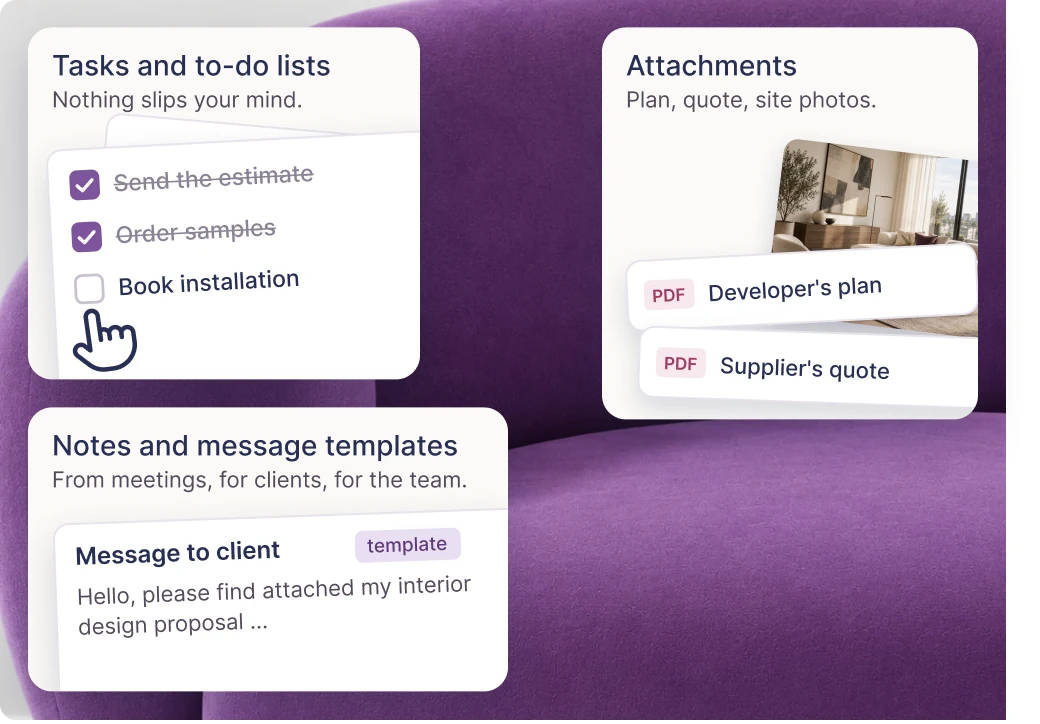
Everything you need to know but don't need to remember - in one place.

Every KIS List project lets you collect meeting notes, client guidelines, to-do lists and attachments: the developer's floor plan, a supplier's offer, photos from the site visit. Ready-made note and message templates speed up communication, and you can come back from a week's holiday and know right away where you are with the project.

Available in the Expert plan

Stage 2 of 5

02 You choose products.

Selecting products is the tedious part of your work - and most of your hours. KIS List gives you those hours back: a product from a shop lands on the list in one click, the favourites library keeps your favourite products, and lists build themselves in the background. In short - you just choose, the rest happens by itself.

KISer - the extension that knows what it sees

All plans

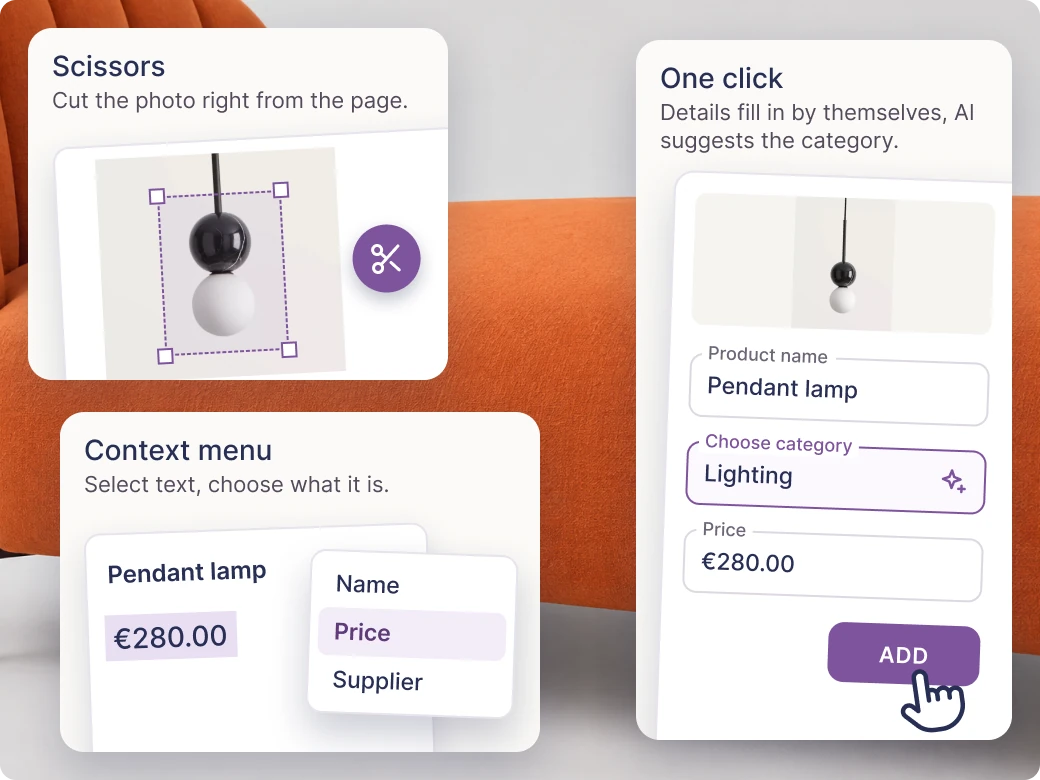
One click - and the product lands on the shopping list with all its details.

A browser extension (and a separate KISer extension for Android and iPhone). You open any shop's page, click the icon, and KISer picks up the photo, name, price, supplier and link. You choose which list and category it goes to. YES, it's THAT simple!

  • ScissorsThe photo didn't come through? Select part of the page and KISer saves it as the product photo.
  • Context menuSelect text on the page and choose what it is: the name, the price or the supplier. KISer fills in the form.
  • AI auto-categorisationKISer suggests the product category itself - a small thing, but it saves one click every time you add something.

The extension in all plans. Context menu in PRO and Expert. AI auto-categorisation in the Expert plan.

Favourite products library

All plans

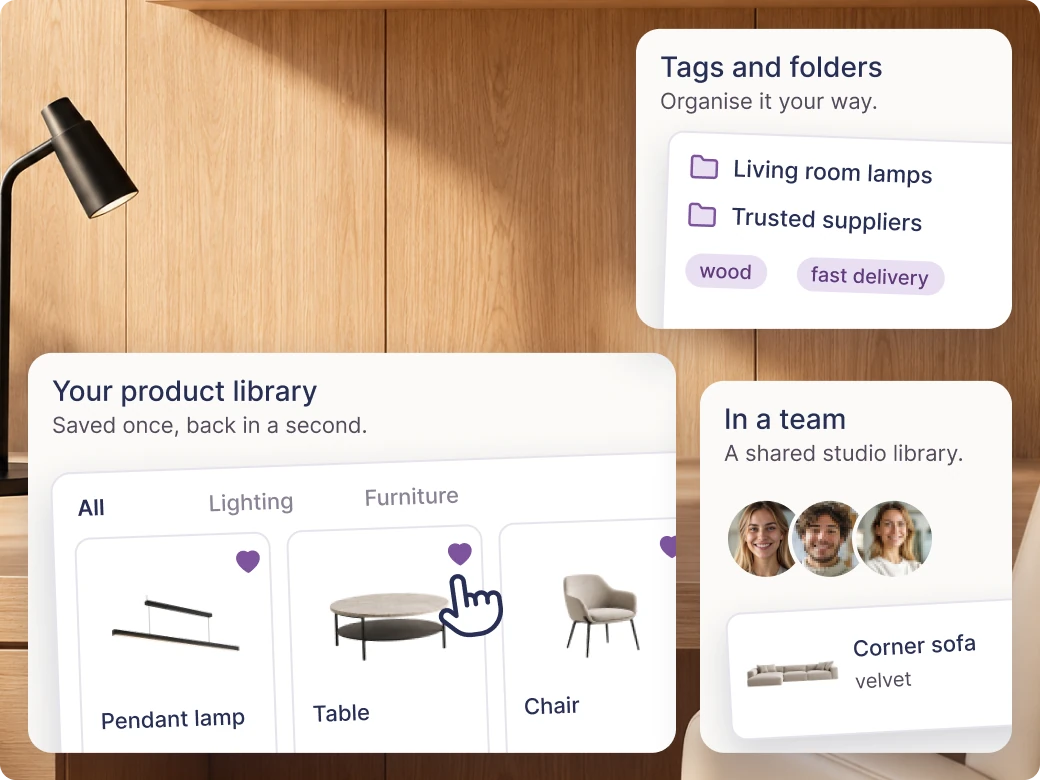
The lamp you added to a “just in case” list a year ago is back in a second.

Every product you save once lands in your personal library of favourite products. Next project - you pull it out in 3 seconds. The PRO and Expert plans add tags, your own folders and editing products in the extension and, from two seats, sharing the library with your team.

Library in all plans. Tags and folders in PRO and Expert. Team sharing in PRO and Expert.

Shopping lists that build themselves

All plans

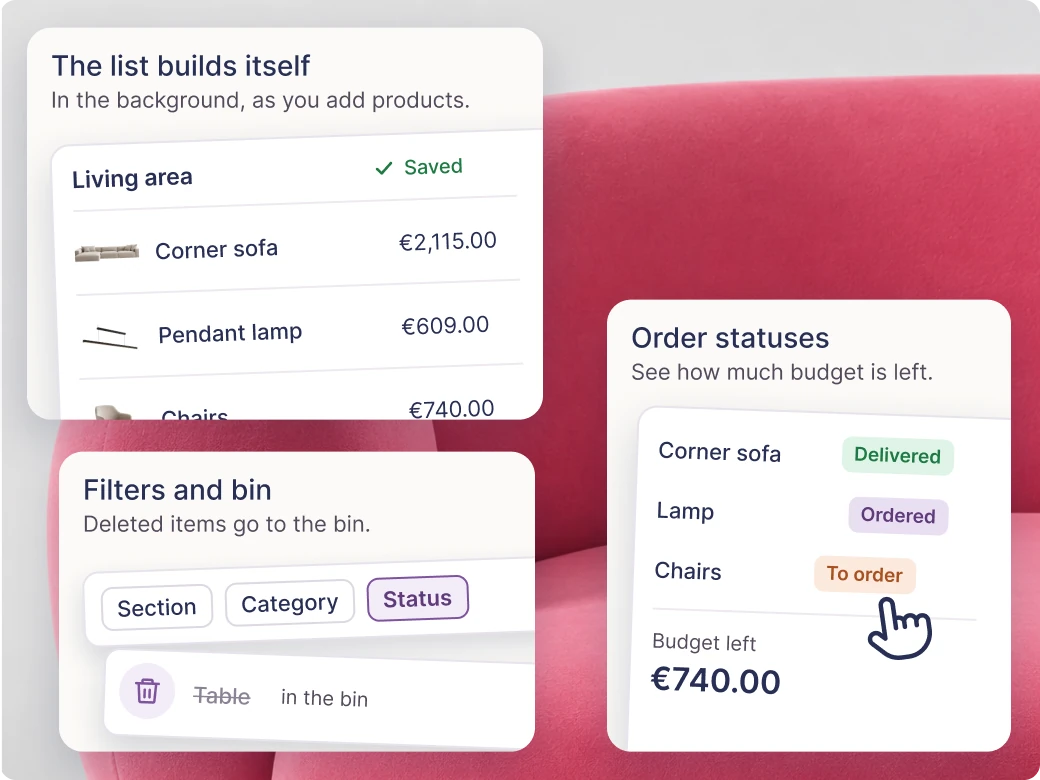
You're still browsing shops, and the list is already done.

In the background, as you add products, KIS List puts the list together. You filter by section, category and status. Autosave works live, and deleted items go to the bin. PRO and Expert add copying lists and sections, moving items between lists, bulk editing, and your own categories and order statuses.

  • Order statusesYou mark what's to be ordered, ordered and delivered. KIS List adds it up, filters it and shows how much is left to spend.

25 lists in Start. Unlimited in PRO and Expert. Advanced operations in PRO and Expert.

Stage 3 of 5

03 You present the concept.

The client buys a vision, not a spreadsheet. KIS List gives you moodboards, visualisation enhancement and exports that look as beautiful as your projects - so the first impression works for you. This is the stage where your work becomes visible.

KISaya enhances your visualisations

AI add-on

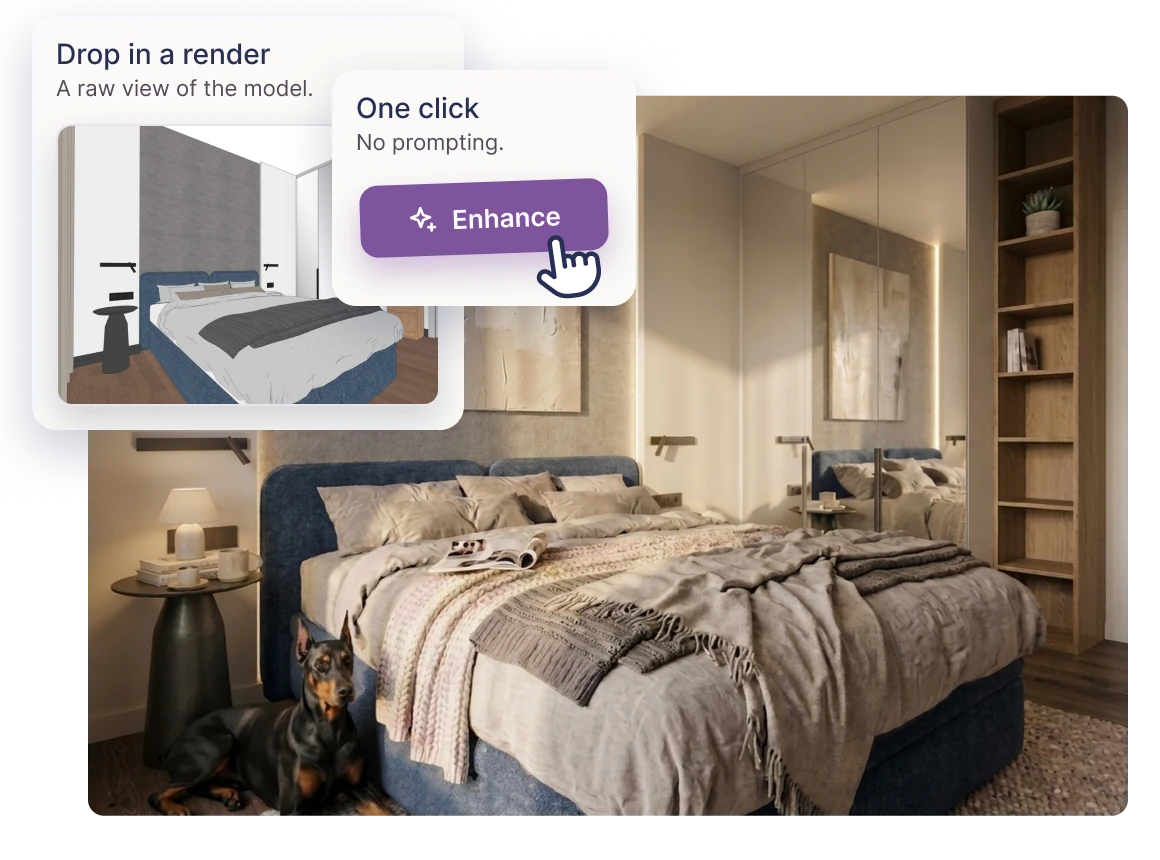
Your visualisation in editorial quality. In one click.

You upload a render from your design software. KISaya, with the help of AI, turns it into a visualisation that looks like a photo of the finished interior: light, textures, atmosphere, framing. A total wow effect - no prompting, every detail preserved, in one click.

Paid add-on, available with every plan
Moodboard view

All plans

An idea you can see at first glance.

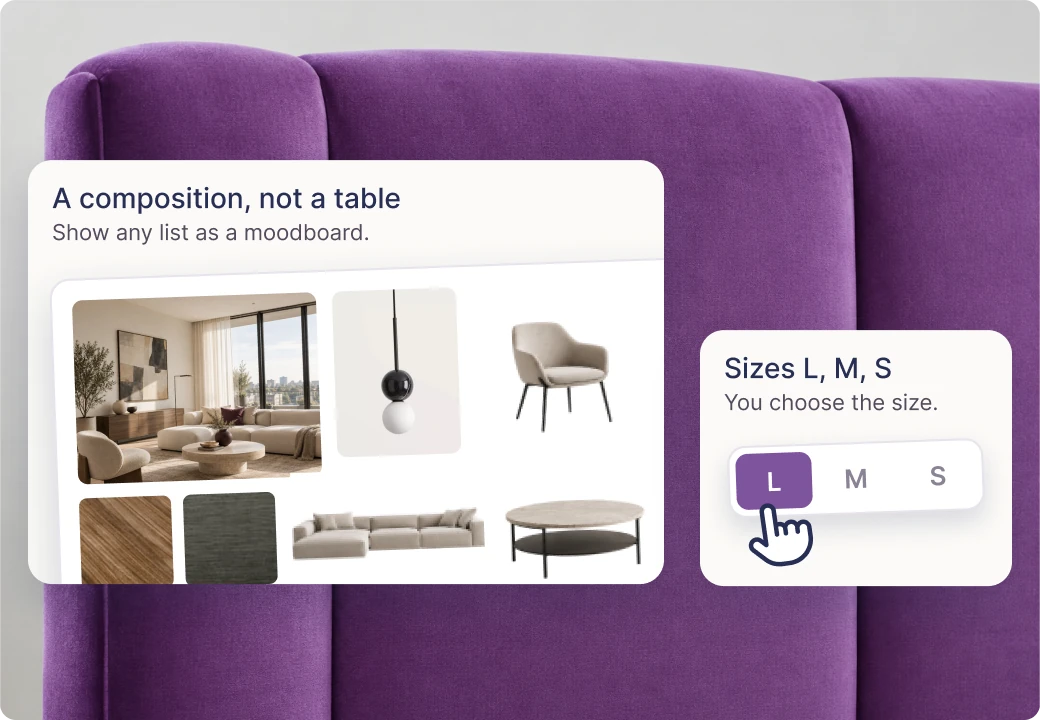
You can show any list in the moodboard view - product photos arranged visually, in L, M or S sizes. A composition instead of a table. You share the proposal with the client online: they see the inspiration and the actual products in one place, and comment on what they see.

Available in all plans

PDF and Excel exports

PDF - all · Excel - PRO and Expert

A file that isn't embarrassed to be opened.

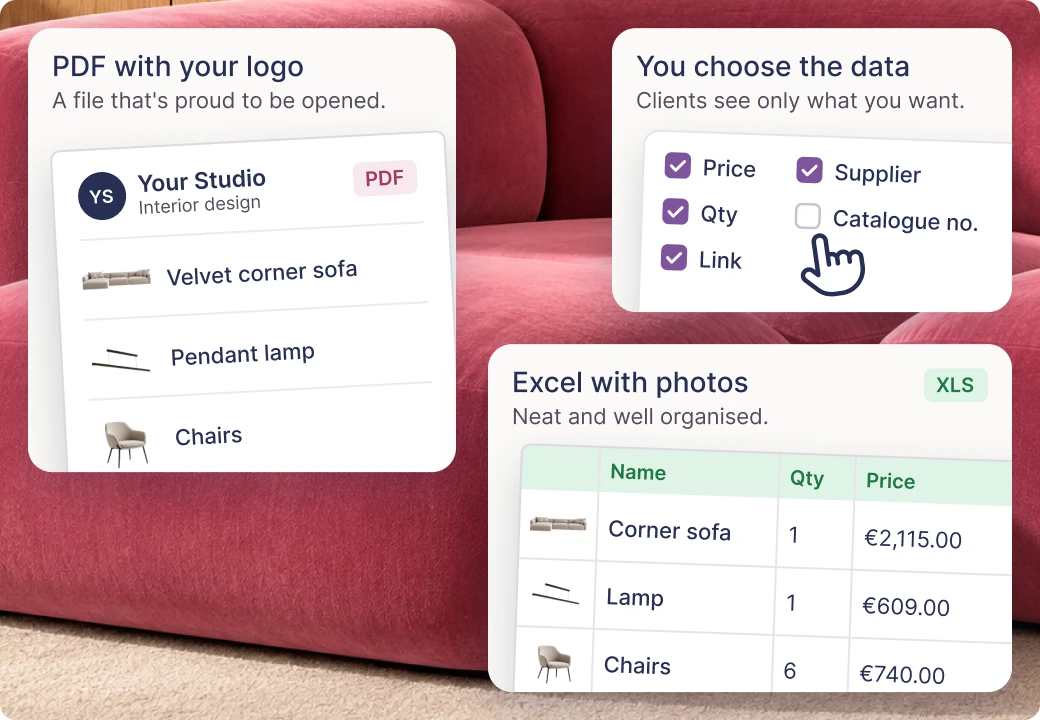
We understand that some investors will prefer a good old file - so PDF export of lists is available in all plans. In PRO and Expert you can also export the list to Excel - neat, well organised and with product photos straight away. You set the visible data: price, quantity, link, supplier and catalogue number. You add a note, a logo and your studio's contact details.

PDF: all plans. Excel and settings: PRO and Expert. Full branding: Expert.

Visualisations on the list

Expert

The list and the vision in one view.

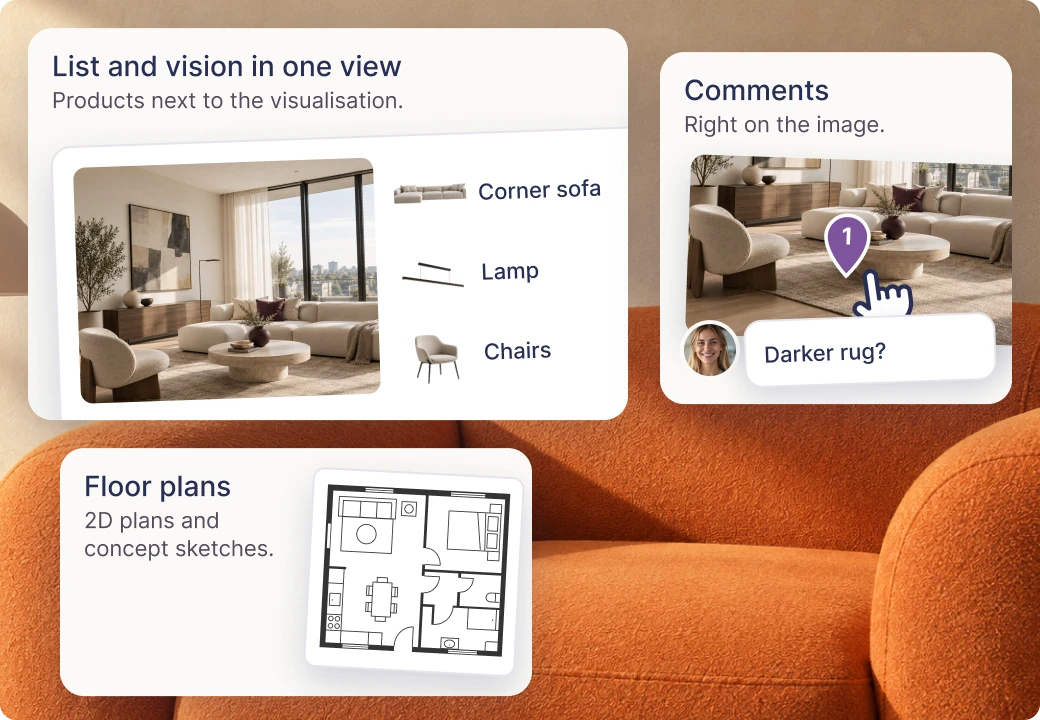
You add interior visualisations to the list or the moodboard. The client sees the products next to the vision of the interior, comments in one place and makes decisions with the full context. You can also add floor plans, 2D drawings or concept sketches - anything that helps see the whole picture.

Available in the Expert plan

Price presentation: discounts, margin, VAT

Expert

The client sees a price they understand. You see the price you earn.

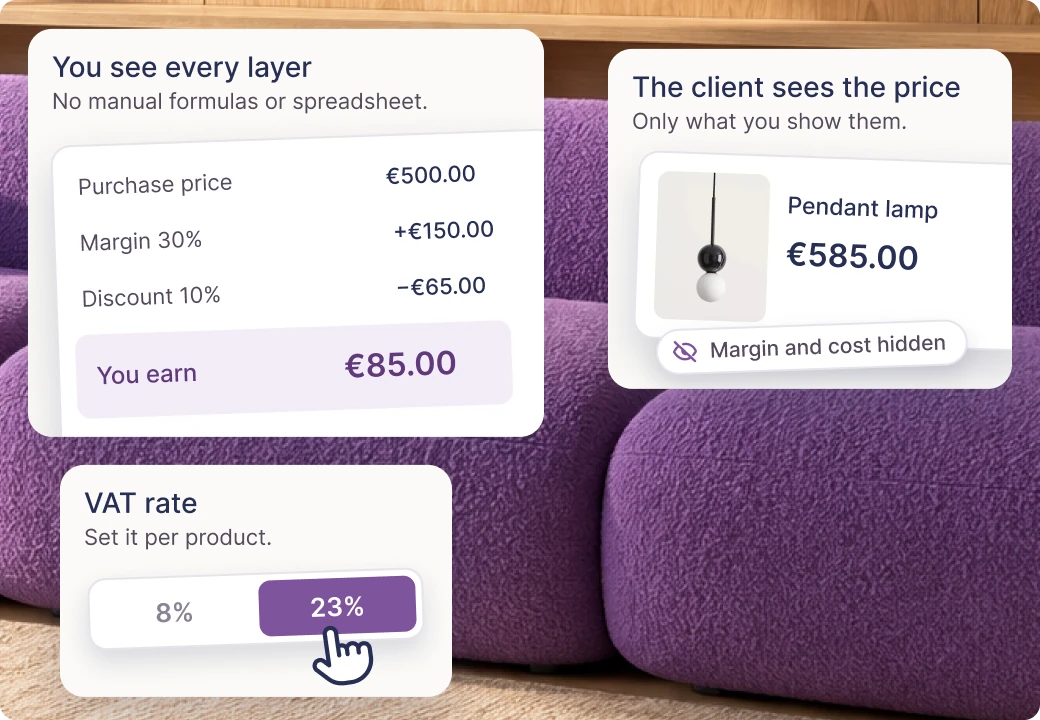
You add discounts to products, calculate your commission and margin, and choose the VAT rate. In the online proposal the client sees only what you show them. Internally you see every layer of the price - clearly, without manual formulas or an extra spreadsheet.

Available in the Expert plan

Stage 4 of 5

04 You finalise decisions.

Sound familiar: “but I said not that one” - that's why KIS List gives the client a place to approve (or reject) specific things, and you have it in black and white until the end of the project. No more digging through emails, texts and WhatsApp messages.

Online proposals with approvals and comments

PRO and Expert

The client “approves” or “rejects” in one click.

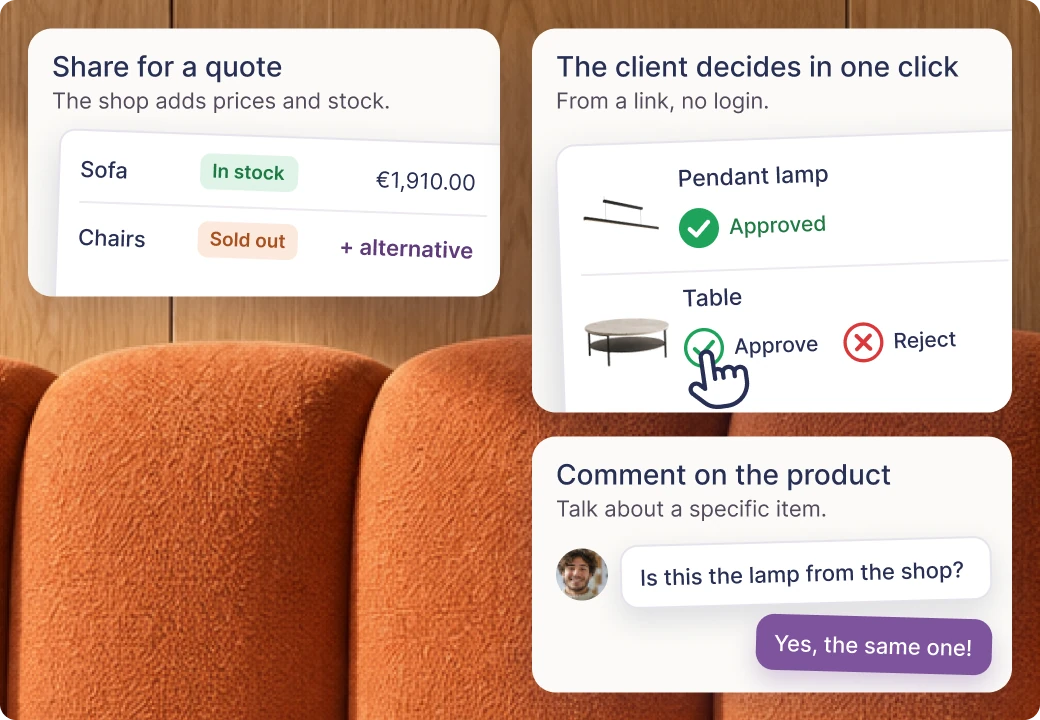
You send the client an online list - no email attachments and no PDFs. The client views the products and the moodboard, comments on specific items, approves them or asks for a change, without logging in. You can also share the proposal with a shop for a quote, to check availability and suggest alternatives.

  • Sharing for a quoteYou can share the proposal with a shop or supplier: they see the products, add their prices and availability. They can also suggest alternatives when something isn't available, ask about details and add products needed for the order. The discussion takes place on specific items.

Client panel

Expert

Everything the client should see. And nothing they shouldn’t.

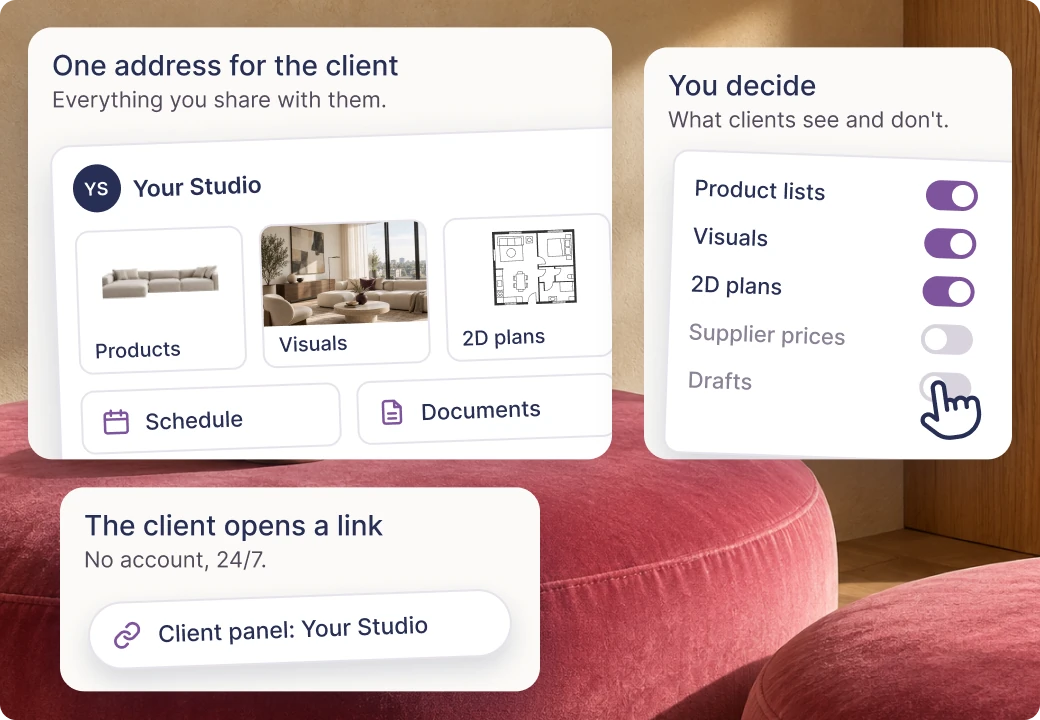
The client gets a single link with everything you share: product lists, visualisations, 2D drawings, the schedule and the project documentation. You decide what goes there. The client doesn’t need an account - they open the link, 24/7.

Pinning comments on visualisations

Expert

No more talking about “that thing on the left”.

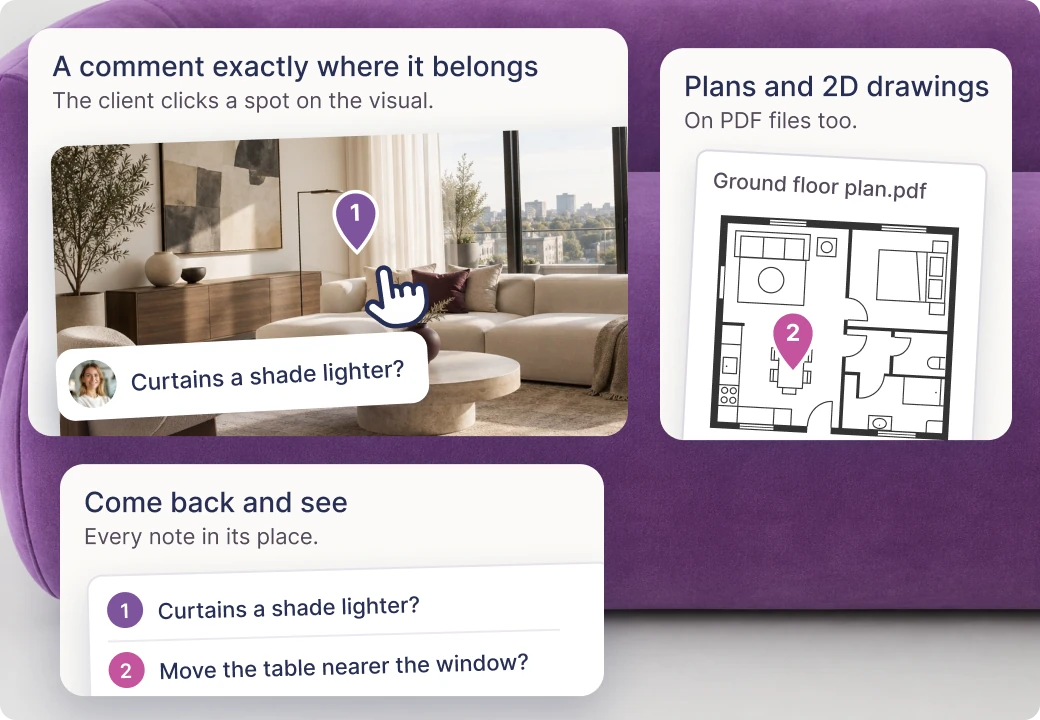
The client clicks a specific point on the visualisation and leaves a comment right there. You come back and see the pin exactly where it refers to. It works on visualisations, floor plans and 2D drawings - wherever you need precise feedback.

Stage 5 of 5

05 You run the project.

Orders, site supervision, documentation, coordinating the crew - it's not the Insta-friendly part of design, but it's where a studio's reputation is built. KIS List guides you through those long months of work: the project panel, the schedule, files and the team.

Project panel - the command centre

Expert

You open the project and know straight away what's happening. Without asking anyone.

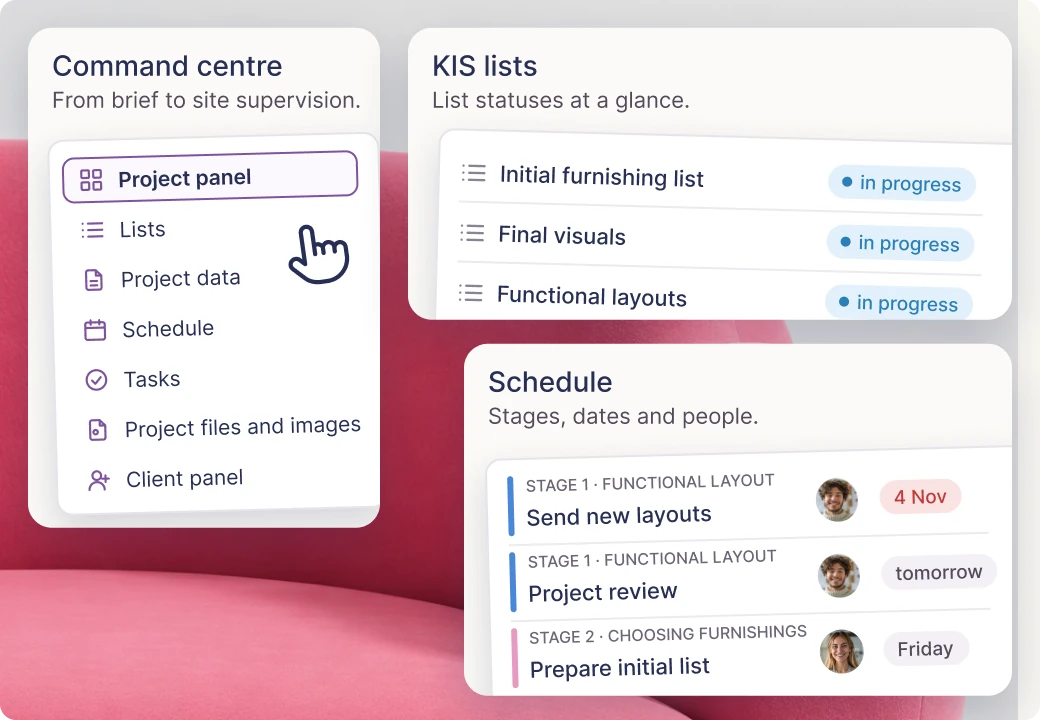
Recent comments, the product list with statuses of orders, the schedule, files, client approvals and upcoming tasks are all in one place. A command centre for every project - from the brief to design supervision.

Available in the Expert plan

Project file centre

Expert

No more “which message did the client send it in?”.

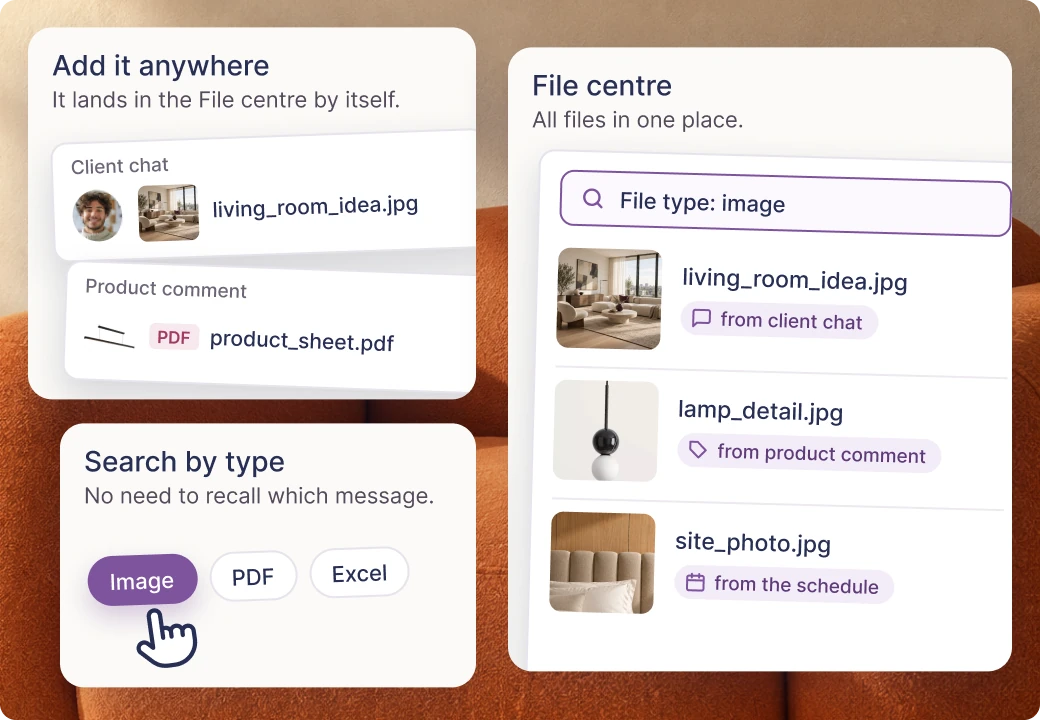
Every project file lands in the file centre. It doesn't matter whether you add it in a product comment or the client sends it in the chat. You search by type, for example images, instead of scrolling through messages. Floor plans, visualisations, offers and invoices are all in one place, and you share them with the client through their panel.

Available in the Expert plan

Schedule, supervision and work planning

Expert

6 projects at once, and you know what’s today, what’s tomorrow and what was two weeks ago.

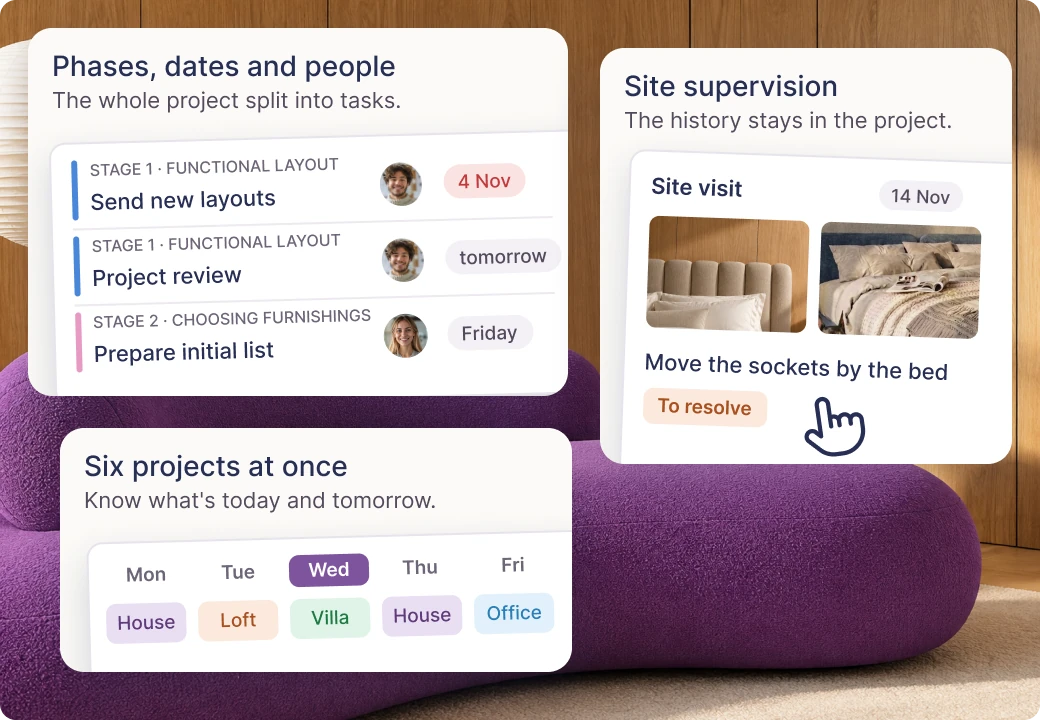
You break the project down into phases and tasks. You assign deadlines, priorities and people, and KIS List reminds you when a deadline is approaching. Six projects at the same time? No sweat!

  • DESIGN SUPERVISIONDesign supervision in the schedule: you add notes, photos from the site, remarks and problems to solve. The client sees progress in their panel, and the history of site visits stays in the project.

Available in the Expert plan

Budget control and order tracking

Expert

“How much is left to spend?” The answer is on screen, not in Excel.

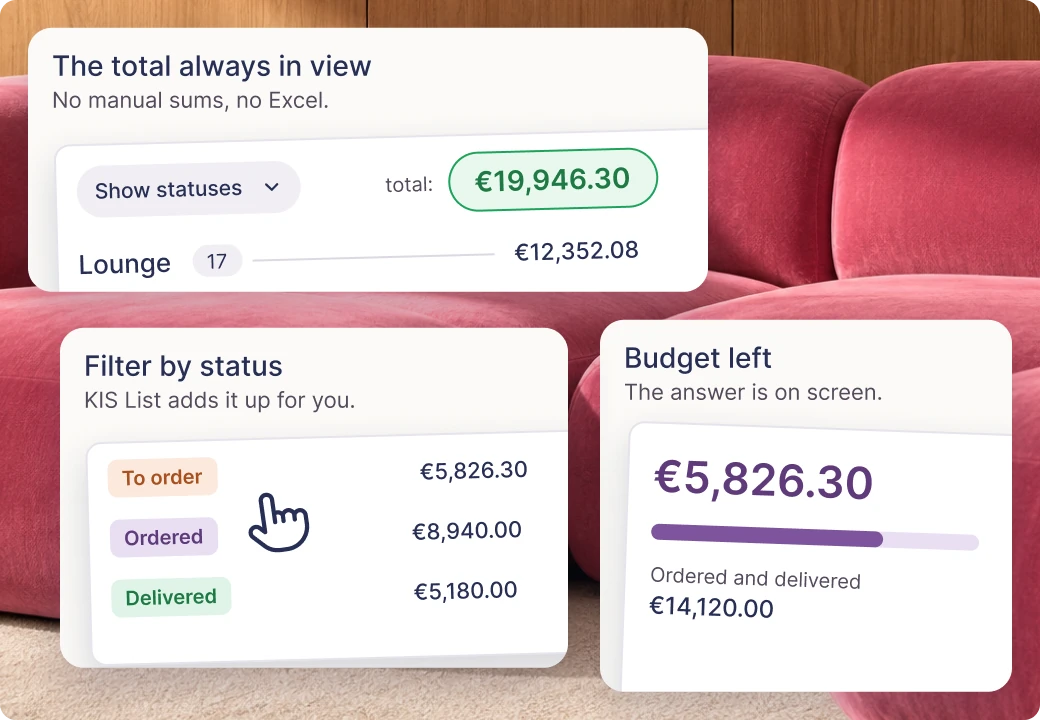
Every product has a status: to be ordered, ordered or delivered. KIS List adds up the amounts, filters by status and shows how much of the budget is left to spend - without manual counting and mistakes.

Statuses in all plans. Advanced budget tracking in the Expert plan.

Table view - your fields, your views

Expert

Everything you used to do in Excel. Only now a beautiful photo of the lamp is right next to it.

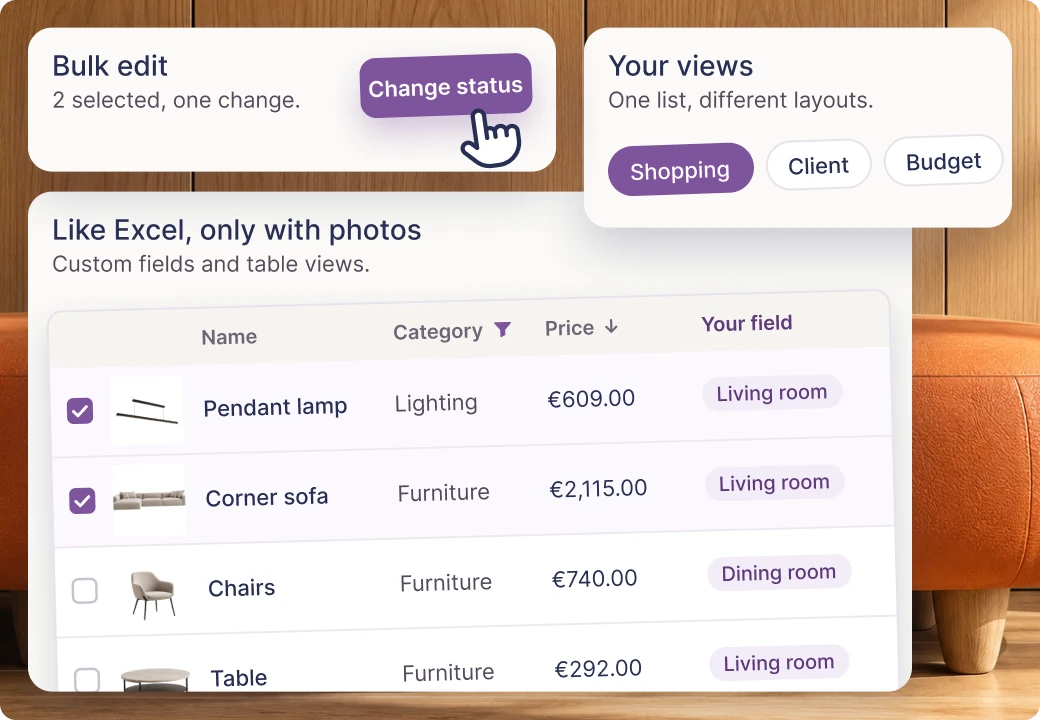
Your own fields and table views, filtering, sorting and bulk editing. Everything you used to do in Excel works here together with product photos, the client panel and the schedule.

Available in the Expert plan

Client panel. Open even while you're drawing.

“Could you send me that floor plan again?” You have it. You're just in the middle of making the next one.

We built a panel the client opens from a link, without an account. You share lists, files and dates with her; your working notes stay with you. She can look at the materials without waiting for you to send an attachment.

Available in the Expert plan

A first project without a big move

To start, we suggest a new job. The archive can wait a while (it's quite good at that).

  1. Agreements first

    Add a note after the conversation and the next tasks. On day one, the project doesn't need your studio's whole history.

  2. Then a list for the living room

    Use KISer to add the furnishings of one room. Check the details, quantities and total, then show the proposal to your client.

  3. And back to it

    Add the decision after the meeting, attach a drawing, set a deadline for the task. When you come back to the project after a visit to another site, check what was recorded. No exam on your own memory.

One person. A plan for the whole project.

Solo describes how many people work in the studio. The scope of the work is often much bigger.

  • Pro

    Products and the client's decisions

    When you mainly need lists, cost estimates and online proposals with approvals.

    • Furnishing lists and cost estimates
    • Online proposals with approvals and comments
    • PDF and Excel export
  • Expert

    From agreements to site supervision

    When, alongside the lists, you manage files, the schedule, notes and the client panel. Even when the whole team is you.

    • Project panel and client panel
    • Schedule, tasks and files
    • Office panel and team comments

FAQ

A few more specifics

I work alone. Is Expert for me too?

Yes. EXPERT doesn't depend on the size of your team but on how you work. If you run the whole project, it gives you the schedule, files, visualisations with comments and the client panel. On the PRO plan you keep lists and cost estimates, without these tools. You pay for one seat.

Do I have to change my design software?

No. KIS List doesn't replace your design software. You draw where you always have, and in KIS List you manage lists, cost estimates, the schedule and contact with the client.

Are KISjusz and KISaya included in the plan price?

No. They run on KISjum, a paid add-on AI budget for your account. You use one budget across both assistants.

Your next project can have fewer tabs.

Start with a list for one room. Then add agreements, files and tasks. Keep your head free for the concept.